Support
VPN & synthetic devices
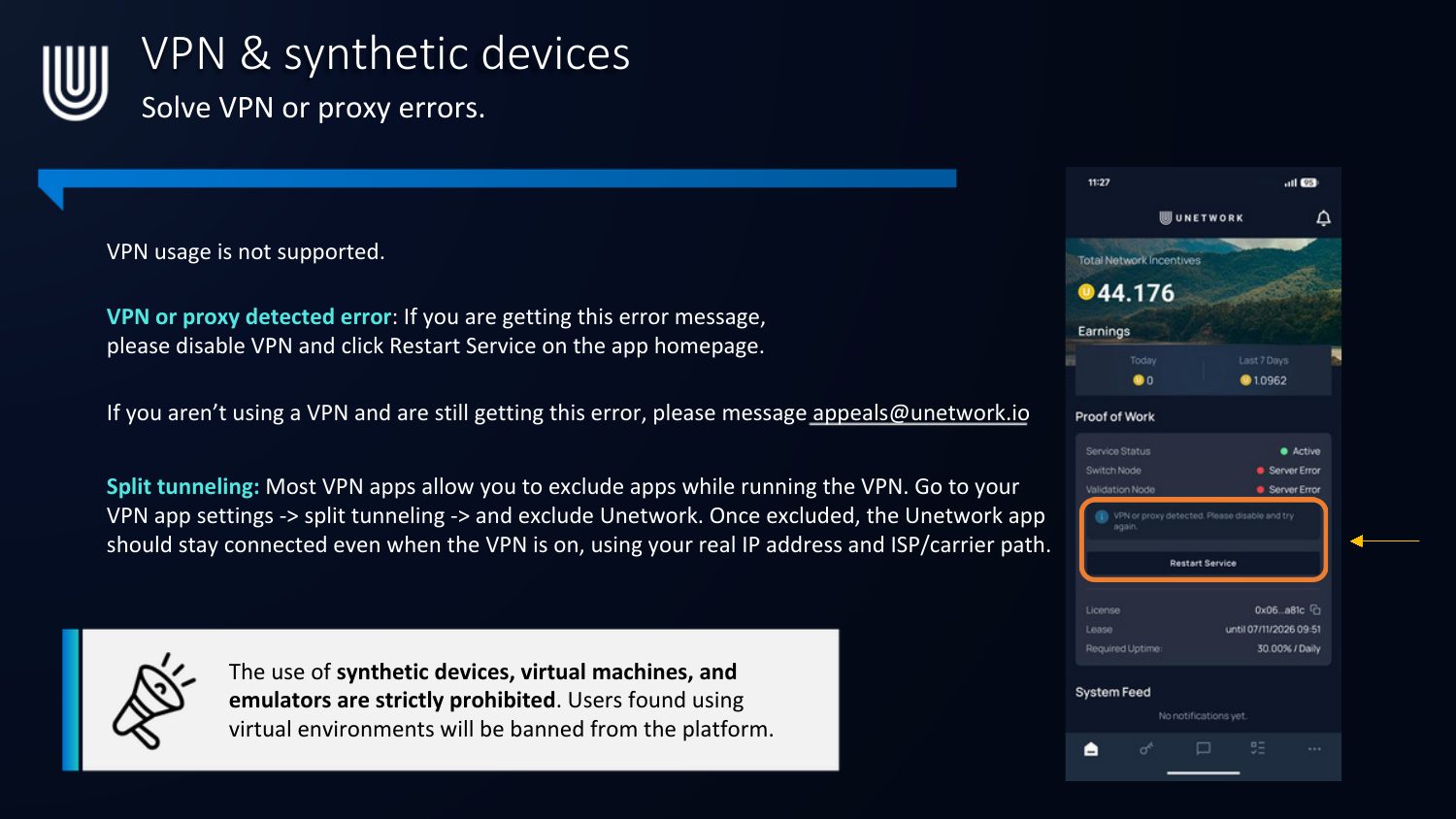
VPN usage is not supported.
- "VPN or proxy detected" error: disable your VPN and click Restart Service on the app homepage. If you aren't using a VPN and still see this error, message appeals@unetwork.io.
- Split tunneling: most VPN apps let you exclude apps while the VPN runs. Go to your VPN app settings → split tunneling → exclude Unetwork. Once excluded, the Unetwork app should stay connected even with the VPN on, using your real IP and ISP/carrier path.
The use of synthetic devices, virtual machines, and emulators is strictly prohibited. Users found using virtual environments will be banned from the platform.
Troubleshooting
- Wallet fails to connect: ensure your Web3 wallet app is unlocked and network settings match Unetwork's supported chain. If you don't receive the email verification code, check spam or try resending after 60 seconds. For help, contact support@unetwork.io or visit the Help Center.
- Security: consider enabling wallet-level security options and regularly review connected devices.
- Delete account: this is permanent — your account data, licenses, and rewards history will be permanently erased.
- Network Activation Credits: each Unetwork Node license requires activation credits to operate; add more from the Settings menu. If a license expires or is revoked, renew or replace it to keep earning. (Credits are currently disabled during the ramp-up period.)
- App isn't working: make sure your device is connected to the internet, disconnect any VPN or proxy, and restart the app. If your 3 activation statuses on the homepage still won't turn green, contact support@unetwork.io.
FAQ
- Can I run Unetwork on old or second-hand phones? Yes — it can run on old smartphones (Android 7.1+ or iOS 15.1+). No SIM card needed.
- Can I operate multiple licenses from one phone? No, each license requires its own individual phone. A single phone can't run multiple licenses. However, all phones on the same account share one reward pool — you can withdraw from any phone without needing the others.
- What information is collected from License Operators? None that's personal or identifying. The system only records the technical data required to verify network activity and issue rewards (quality metrics, anonymized device performance stats). Unetwork is fully GDPR compliant — no names, addresses, phone numbers, or other personally identifiable details are collected or stored.
- Does Unetwork consume minutes or data from my phone plan? Unetwork only consumes data from your plan, not minutes. If you're connected to Wi-Fi, no mobile data is used.
- Which countries does Unetwork function in? All countries, except where VoIP services are restricted or international sanctions apply — including the UAE, Oman, and China (restricted VoIP), and comprehensively sanctioned jurisdictions such as Iran, North Korea, Syria, Russia, Crimea, Donetsk and Luhansk regions of Ukraine, Afghanistan, Belarus, Cuba, Myanmar, Sudan, South Sudan, Venezuela, Yemen, and Zimbabwe.
FAQ continued: why is my uptime low?
The problem might be OS background handling — the operating system suspends background activity for apps based on usage patterns, battery level, thermal state, recent foreground time, and how useful it rates the app in the background. The "Active/Connected" indicator reflects the last known state when the OS allowed the app to run, not a continuous connection. When the OS suspends the app overnight the connection drops; when it wakes the app back up, uptime starts climbing again. This is why phones can all show green status dots yet record very different daily uptime numbers.
A few things to check on each phone:
- Settings → General → Background App Refresh — make sure it's enabled globally and specifically for Unetwork.
- Settings → Privacy & Security → Location Services → Unetwork — set to "Always."
- Avoid force-closing the app from the app switcher (it tells the OS not to wake it back up).
- Keep the phone plugged in overnight or above 20% battery — Low Power Mode (which can engage automatically below 20%) will suspend background activity.
- Keep the app open in the recent apps list and briefly reopen it each morning if you notice an overnight reset.
Submit a support ticket
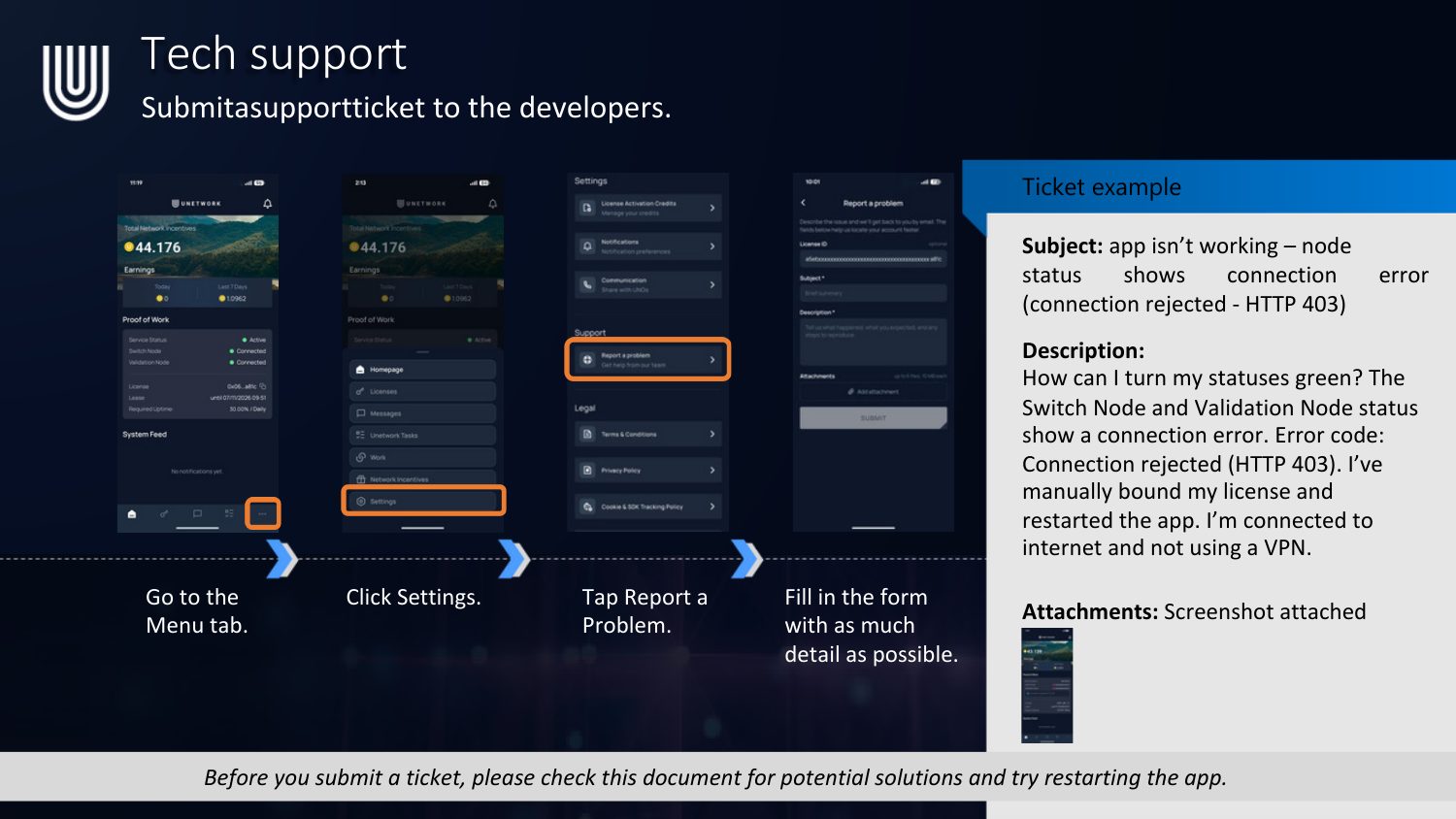
Submit a support ticket to the developers for any software issue.
- Go to the Menu tab.
- Click Settings.
- Tap Report a Problem.
- Fill in the form with as much detail as possible, and attach a screenshot if you can.
Before you submit a ticket, please check this guide for potential solutions and try restarting the app first.
More resources
Access additional information and official channels:
- Claim your free license code
- The Unetwork Official YouTube channel
- Official Unetwork website
- Official X (Announcements)
- Official Telegram (Announcements)
- Bug-Report
- Email support@telcogigs.com
Prefer the visual PDF version? Download the Support PDF